
How to Pair and Use Wireless Apple CarPlay in the 2026 Ford Explorer
The 2026 Ford Explorer makes wireless Apple CarPlay standard across every trim level, and it’s one of those features that genuinely changes how you use your vehicle day to day. No cables, no plugging in before you back out of the driveway. You get in, and your iPhone connects. At Stivers Ford of Birmingham, we walk customers through this setup regularly, so here’s exactly how it works.
What You Need Before Using Wireless Apple CarPlay in Your 2026 Explorer
Before touching any settings, take a few minutes to confirm everything on your end is ready. Wireless CarPlay depends on your iPhone and the Explorer’s Ford Digital Experience system working together cleanly.
iPhone Compatibility and iOS Requirements
Wireless Apple CarPlay supports iPhone 5 or newer running iOS 7.1 or later, so most iPhones in use today will qualify. That said, iOS 13 or later is recommended for the smoothest experience, and iPhone 12 and newer provide the strongest wireless performance thanks to Wi-Fi 6. Before your first pairing, go to Settings > General > Software Update and confirm your iPhone is current.
You’ll also need three settings active on your iPhone before pairing:
- Bluetooth ON (Settings > Bluetooth)
- Wi-Fi ON (Settings > Wi-Fi), required for the wireless link
- Siri enabled (Settings > Siri & Search)
Keep your iPhone unlocked during the initial pairing. The system requires screen access to complete the authorization.
How the Ford Digital Experience Powers the 13.2-Inch Center Display
The 2026 Ford Explorer runs the Ford Digital Experience, which drives the 13.2-inch center touchscreen. The display makes navigation maps easier to read at a glance, keeps media controls within reach, and supports both voice commands and touch interaction. The Ford Digital Experience also receives periodic software updates that improve wireless connectivity. Check for available updates through the display’s settings menu or via the FordPass app.
How to Pair Wireless Apple CarPlay in the 2026 Ford Explorer
The first-time setup takes just a few minutes. Follow these steps in order:
- Start the vehicle and let Ford Digital Experience fully load.
- On the Ford Digital Experience display, open Settings or Phone and select Add Phone.
- On your iPhone, go to Settings > Bluetooth and select the vehicle name when it appears.
- A PIN will appear on both screens. Confirm they match.
- Tap Pair on your iPhone and select Yes on the vehicle display.
- When prompted, allow contact download on the vehicle.
- On your iPhone, tap Use CarPlay.
- On the Ford Digital Experience display, select Enable to activate CarPlay.
- Leave Wi-Fi enabled on your iPhone. It maintains the wireless connection.
After the initial pairing, CarPlay reconnects automatically each time you get in the vehicle, as long as Bluetooth and Wi-Fi remain enabled on your iPhone.
Connecting via USB Cable: The Wired CarPlay Alternative
The wired option is worth knowing, especially when connecting a new iPhone or working through a wireless issue. Plug your iPhone into the Explorer’s USB port using an Apple cable, tap Continue if prompted on the display, accept the terms, and tap Allow on your iPhone. CarPlay launches automatically.
Starting with a wired connection when setting up a new iPhone can also simplify wireless pairing afterward. Once CarPlay recognizes your device via USB, the wireless transition tends to go more smoothly. The 2026 Explorer includes both USB-A and USB-C ports for wired use and charging.
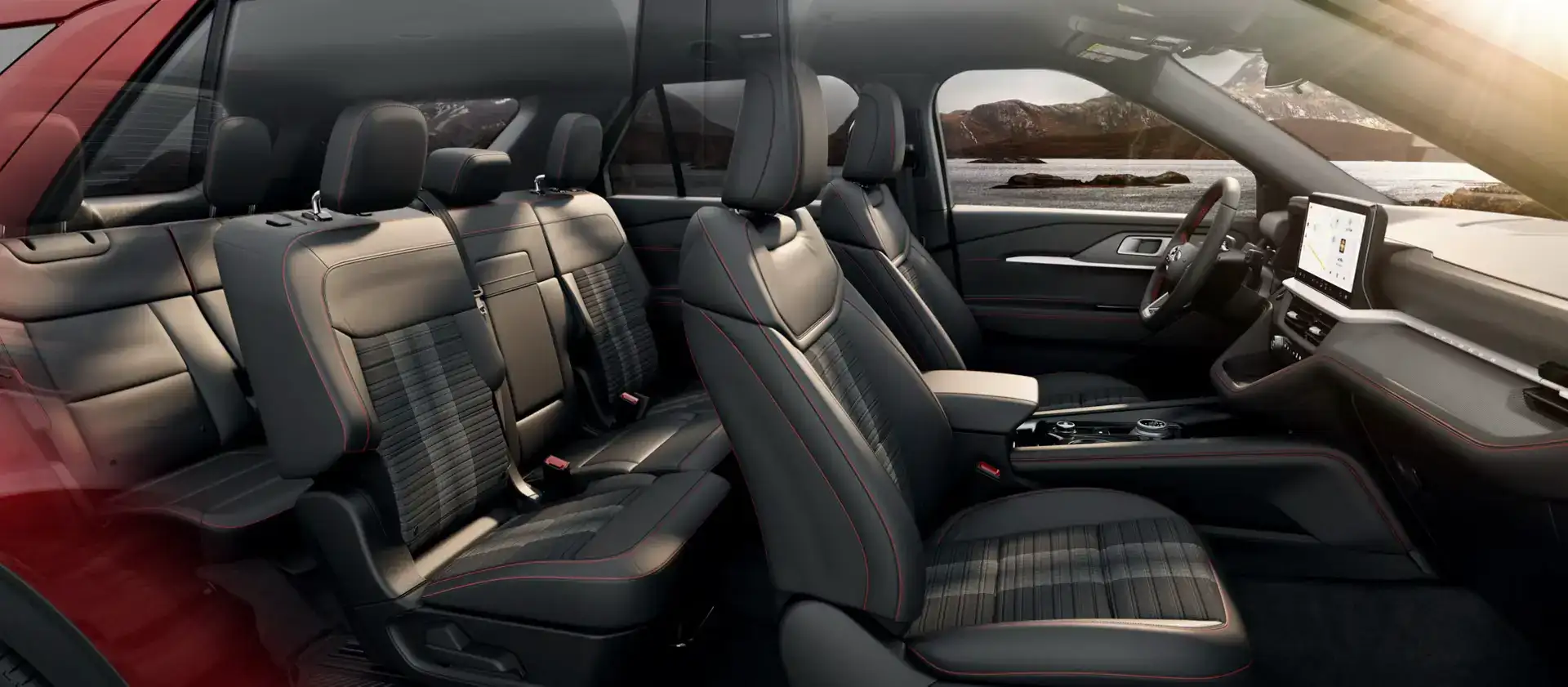
What You Can Do With Apple CarPlay on the Road
Once CarPlay is running on the 13.2-inch Ford Digital Experience display, your iPhone’s most useful apps are laid out in a clean, driver-friendly interface.
Navigation works through Apple Maps, Google Maps, or Waze, with real-time traffic and turn-by-turn directions. Music, podcasts, and audiobooks stream through Spotify, Apple Music, Apple Podcasts, Audible, and other supported apps. Incoming calls appear on the display for one-tap answering, and for messages, Siri reads them aloud and lets you reply by voice.
On that note, use Siri. Asking Siri to handle navigation, media, messages, and calls keeps your eyes on the road, and it’s the recommended way to interact with CarPlay while driving.
Wireless CarPlay vs. Wireless Charging: An Important Distinction
This comes up often enough to address directly: wireless Apple CarPlay and wireless phone charging are completely separate features. Wireless CarPlay uses Bluetooth and Wi-Fi to connect your iPhone to the Ford Digital Experience system. It does not charge your battery.
The 2026 Ford Explorer includes a wireless charging pad on select trims. On trims without a wireless charging pad, charging is handled through the USB-A and USB-C ports. If you’re using wireless CarPlay for navigation and media on a long drive, plug into a USB-C port to keep your iPhone powered. The wireless connection and the USB charge cable work together without any conflict.
Troubleshooting Common Wireless Apple CarPlay Issues
Most wireless CarPlay problems have straightforward fixes. Work through these before assuming a bigger issue.
CarPlay Won’t Appear or Connect to the Display
- Confirm Bluetooth, Wi-Fi, and Siri are all enabled on your iPhone.
- Make sure the iPhone isn’t paired to another Bluetooth device that might be pulling the connection.
- On the Ford Digital Experience display, verify Apple CarPlay is enabled in the settings menu.
- If the screen never appears, restart your iPhone and power cycle the Ford Digital Experience display by holding the power button, then re-enter the vehicle.
Connection Drops or Fails to Reconnect Automatically
- Disable Bluetooth on other devices in the vehicle that aren’t in use, since multiple active Bluetooth connections can cause interference.
- Update your iPhone to the latest iOS and check for any available firmware updates.
- If the issue persists, remove the vehicle from your iPhone’s CarPlay settings (Settings > General > CarPlay) and remove the iPhone pairing from the Ford Digital Experience system, then re-pair from scratch.
- As a reset option, connect via USB once to re-establish authorization, then return to wireless.
Visit Stivers Ford of Birmingham for a Hands-On Tech Walkthrough
Reading through the setup process helps, but seeing it on an actual 2026 Ford Explorer makes everything click faster. Our team at Stivers Ford of Birmingham is glad to walk you through the full wireless CarPlay pairing, show you what the 13.2-inch Ford Digital Experience display can do, and answer any questions about the Explorer’s tech before you leave the lot.
If you’re still in the shopping phase, we’re happy to talk through your options and help you find the right fit. You can explore financing for a 2026 Explorer to get a clearer picture of what ownership looks like. When you’re ready to take the next step or just want that hands-on walkthrough, contact our team and we’ll set something up.
Images by OEM
0 comment(s) so far on How to Pair and Use Wireless Apple CarPlay in the 2026 Ford Explorer